So you’ve encountered the dreaded 49153 error while trying to log into your Sage 300 application? Fear not, this is usually a pretty straightforward error message and Equation Technologies can help walk you through our troubleshooting steps when someone contacts us with this error message.
First things first, what does 49153 actually mean? 49153 is the Sage developers’ code for failure to connect to the database. Really this just means that the Sage 300 application has launched (the front end) but when it tries to make its connection to the database (the back end) where your Sage 300 data resides, for one reason or another it cannot connect to the database. So where to start? Here are the steps Equation Technologies’ technicians follow to troubleshoot and address this error message.
- One way to check whether the database connection error is related to a specific database or all databases is to log into the Sage 300 DBSETUP utility that is responsible for storing the connection related information related to the database associated with the company in Sage 300. You can access this utility by clicking on the Start Button then All Programs>Sage>Sage 300 2012 (or Sage 300 2014 or Sage 300 2016 depending upon your version)>Database Setup
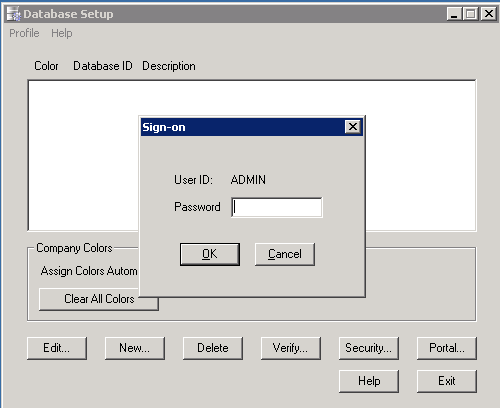
Only the Sage 300 ADMIN user can log in here, so you will need this password. Once in, you can see the setup profiles for all your Sage 300 Companies and by double clicking on one you can view the setup properties.
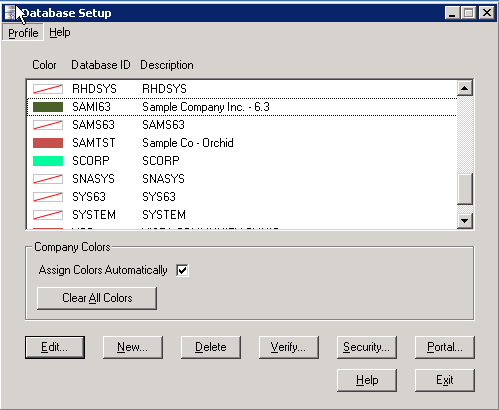
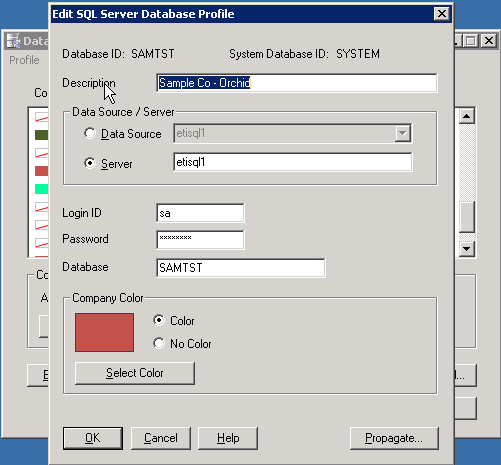
You can check that the Server listed is in fact the correct server name, that your login ID and Password are correct, and finally that you have the correct database device name indicated when Sage 300 attempts to connect with and open the database associated with this Sage 300 Company.
If you click OK here and receive the 49153 error, check these settings and correct as necessary. If you are getting the 49153 error for more than one of your databases and you are sure that your settings in this configuration utility are correct, you will need to determine next whether you have a larger problem with the SQL server itself, or a connection problem with your computer.
- Do other users of the Sage 300 application also receive this error when attempting to log into a Sage 300 database? If so, then the issue is probably related to the database server since it is common to all the users. If not, then the issue is probably isolated to this specific workstation/computer. If only this workstation is returning a 49153 error message and you have completed the steps in 1) above then please skip ahead to step X. If all Sage 300 users are receiving a 49153 error please proceed to step 3.
- Ensure the database server is running. You can do this by verifying at the server console that the server is running but another perhaps easier way is to try to ‘ping’ the database server by name. This will tell you if it is visible to other computers on the network or not. Click the Start button then type in ‘cmd’ and press enter. You should then see a command dialog (or DOS) box that looks like this:
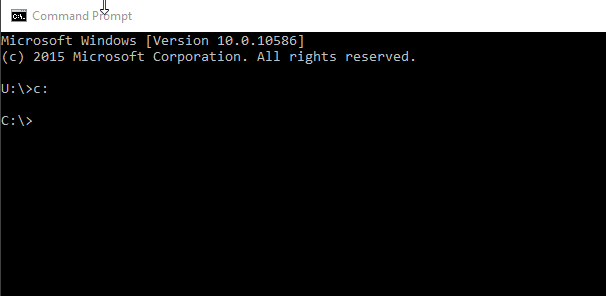
At the C: prompt type in ‘ping databaseservername’ where database server name is the name of the computer your database is located on. In this example ours is ‘etisql2016’"
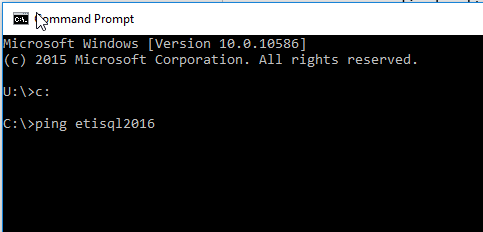
Once you have typed in this command, press the Enter key. You should see something like this:
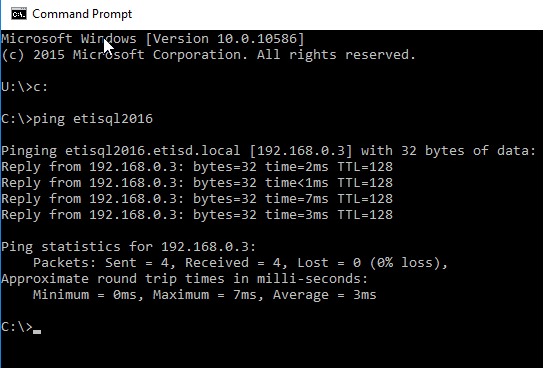
If you see something different than this, like maybe this:

Then there is an issue with either the server itself and you should contact your IT person to determine the state of the database server and/or restart it. If you restart it and still cannot successfully ping it by name, try pinging it by its IP address.
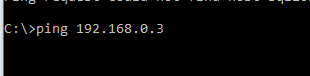
In this example, the IP address of the SQL server is 192.168.0.3. Yours will likely be different and you may need to ask your IT person if you do not know it. If you can successfully ping the database server by IP, but not by name, then you must ask your IT person to check the ‘DNS’ of the local network because there is a problem with the ‘name resolution’ on the network if you can successfully ping by IP address and not by name.
If you still cannot ping by IP address, then it is likely the server is either off altogether or may have lost its connection to the network. At this point you should contact your IT person to try restarting the database server or ask him/her to look into why it isn’t pinging.
- If the server pings by name but is still giving all users a 49153 error, then it is likely time to check the SQL Server Service on the database server to see if that service is offline or otherwise not working. To do this, you will need to get access to your database server either by logging into to console or initiating a Remote Desktop Protocol (RDP) session to the server. Again, you should contact your IT person for assistance at this point.
- Let’s check the server itself. Once you are connected to the server desktop, you can click the start button then type in ‘services.msc’ and press the Enter key on your keyboard. This should bring up the Services management snap-in like the one shown here:
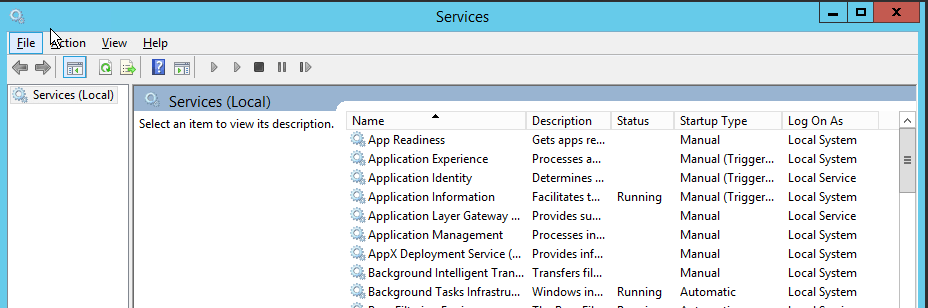
In the right hand pane you will want to scroll down until you find the SQL Server (MSSQLSERVER) service as shown. This service should indicate that its status is ‘Running’ and its Startup Type is set to ‘Automatic’. If either of these are not the case, please ask your IT person for assistance.
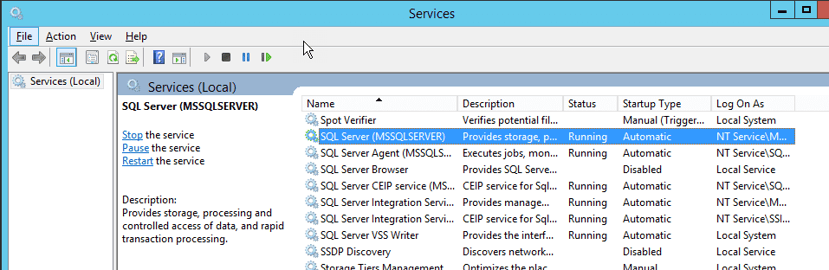
If the SQL Server service is not shown as ‘Running’ you have more than likely found the root of your problem. You can start/re-start this service by right clicking on the SQL Server service and choosing ‘Start’ or ‘Restart’ as highlighted below.
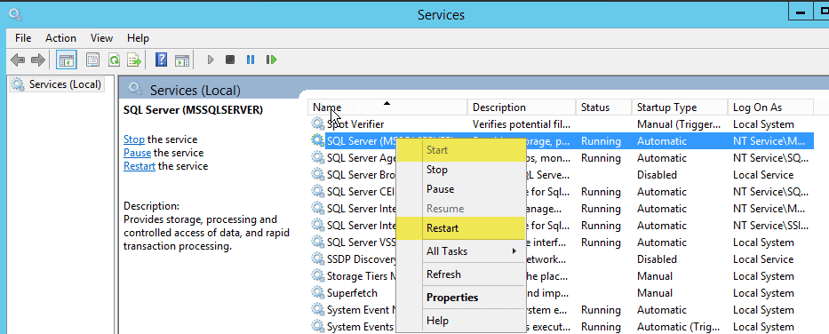
If the service fails to start, please ask your IT person to look into the credentials used for the Log On As portion of the service on the far right hand column (in the example above the Log On As is ‘NT Service\M..’ In some cases we have seen other credentials used on this service and a password change to the account used will affect the ability to successfully launch the service.
See Also:
Still Need Help?
Contact us to speak with a ERP tech support expert or learn about the Sage 300 ERP (Accpac) support options from Equation Technologies.